Using Caps Lock as Control in Vim
I’ve remapped Caps Lock to Control in macOS to make Vim’s Control shortcuts easier to reach.
 Alexander Claes2 min read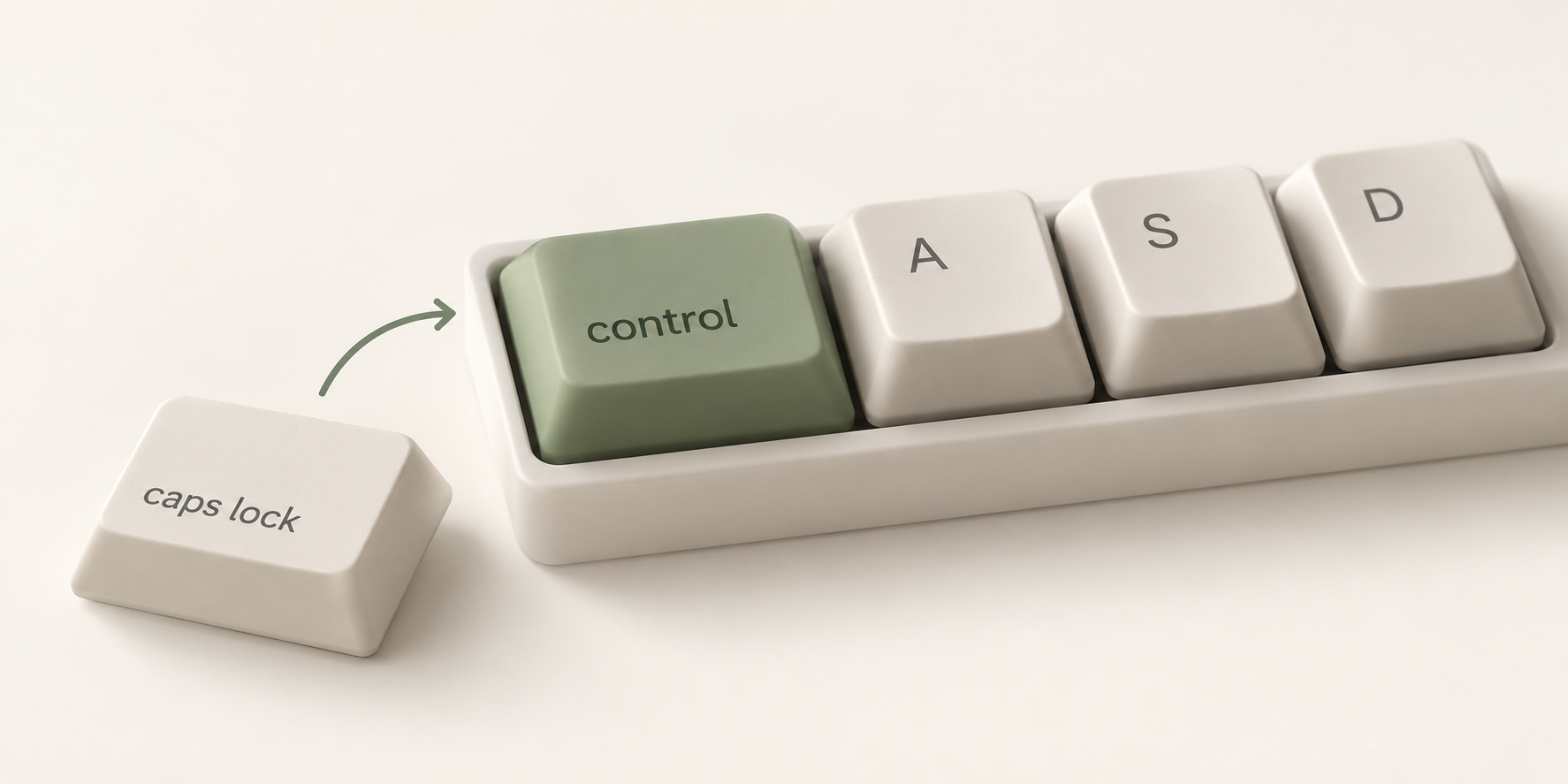
Caps Lock occupies a convenient position on the keyboard for something I rarely need. Control is a key I use much more often in Vim, but on my MacBook it sits in the bottom-left corner.
I’ve remapped Caps Lock to Control in macOS. It’s a small change, but it puts a useful key right next to where my left hand already rests.
Less reaching around the keyboard
Vim is often associated with h, j, k and l, but Control combinations are also part of navigating and working in the editor. Scrolling with Ctrl-d and Ctrl-u, for example, becomes easier to reach when Control is next to the A key.
The shortcuts themselves stay exactly the same. I’m simply pressing a different physical key to use them.
This is also a straightforward remap: Caps Lock acts as Control. It doesn’t double as Escape when tapped or behave differently depending on how long I hold it.
A small change to the default
Keyboard customisation can easily become a project of its own. Layers, combinations and application-specific mappings give you plenty of things to configure before you get back to actually writing code.
This change is fairly modest. macOS has a built-in modifier key setting, so it doesn’t require another application or a configuration file.
It won’t make someone a better Vim user. But if you regularly reach for Control and barely use Caps Lock, swapping their priorities is worth trying.